m0_72220244 2023-07-08 11:29 采纳率: 0%
浏览 12

conda 安装antismash

PS C:\Users\Y2420> conda activate antismash

CommandNotFoundError: Your shell has not been properly configured to use 'conda activate'.
If your shell is Bash or a Bourne variant, enable conda for the current user with

$ echo ". E:\Anaconda/etc/profile.d/conda.sh" >> ~/.bashrc

or, for all users, enable conda with

$ sudo ln -s E:\Anaconda/etc/profile.d/conda.sh /etc/profile.d/conda.sh

The options above will permanently enable the 'conda' command, but they do NOT
put conda's base (root) environment on PATH. To do so, run

$ conda activate

in your terminal, or to put the base environment on PATH permanently, run

$ echo "conda activate" >> ~/.bashrc

Previous to conda 4.4, the recommended way to activate conda was to modify PATH in
your ~/.bashrc file. You should manually remove the line that looks like

export PATH="E:\Anaconda/bin:$PATH"

^^^ The above line should NO LONGER be in your ~/.bashrc file! ^^^

  • 写回答

1条回答 默认 最新

  • CSDN-Ada助手 CSDN-AI 官方账号 2023-07-08 14:10
    关注
    • 文章:CommandNotFoundError: Your shell has not been properly configured to use ‘conda activate‘. 中也许有你想要的答案,请看下吧
    • 除此之外, 这篇博客: CommandNotFoundError: Your shell has not been properly configured to use ‘conda activate‘ 问题解决中的 问题 部分也许能够解决你的问题, 你可以仔细阅读以下内容或跳转源博客中阅读:
    • 环境:Linux Centos 7
      
      输入: conda activate xxx 
      
      报错如下:
      
      CommandNotFoundError: Your shell has not been properly configured to use 'conda activate'.
      If your shell is Bash or a Bourne variant, enable conda for the current user with
      
          $ echo ". /root/anaconda3/etc/profile.d/conda.sh" >> ~/.bashrc
      
      or, for all users, enable conda with
      
          $ sudo ln -s /root/anaconda3/etc/profile.d/conda.sh /etc/profile.d/conda.sh
      
      The options above will permanently enable the 'conda' command, but they do NOT
      put conda's base (root) environment on PATH.  To do so, run
      
          $ conda activate
      
      in your terminal, or to put the base environment on PATH permanently, run
      
          $ echo "conda activate" >> ~/.bashrc
      
      Previous to conda 4.4, the recommended way to activate conda was to modify PATH in
      your ~/.bashrc file.  You should manually remove the line that looks like
      
          export PATH="/root/anaconda3/bin:$PATH"
      
      ^^^ The above line should NO LONGER be in your ~/.bashrc file! ^^^
      

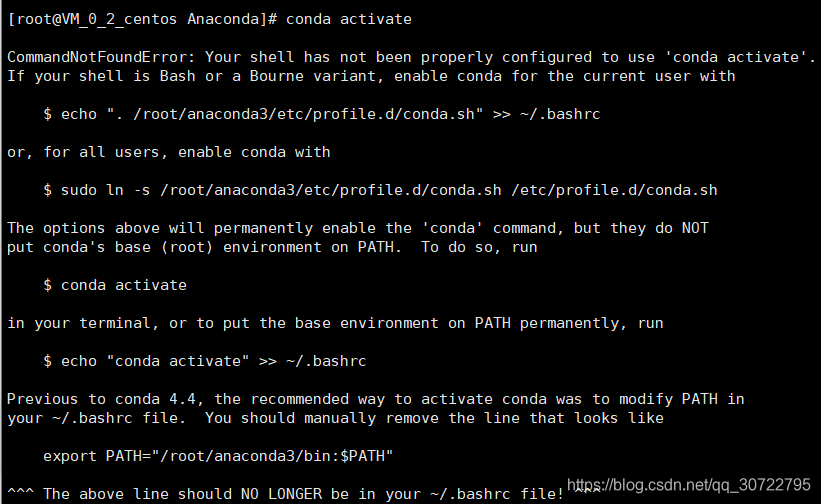
      错误截图

    • 以下回答由chatgpt基于相关博客总结生成:

      问题的解决方法是通过运行conda init命令来初始化shell,然后重启shell。具体步骤如下:

      1. 打开终端,运行以下命令初始化shell:
      conda init <SHELL_NAME>
      

      需要将<SHELL_NAME>替换为你当前正在使用的shell,例如zsh或bash。如果你不确定当前正在使用的shell,可以使用以下命令查看:

      echo $SHELL
      
      1. 重启shell,关闭当前终端窗口并重新打开一个新的终端窗口。

      2. 在新的终端窗口中,尝试再次运行conda activate命令来激活虚拟环境。例如:

      conda activate virtual_env
      

      现在,你应该能够成功激活虚拟环境了。如果还有问题,请尝试其他方法。

      如果以上方法无效,你可以尝试使用另一种激活虚拟环境的方式:

      1. 首次激活conda虚拟环境,使用以下命令:
      source activate my_conda_virtual_environment
      

      my_conda_virtual_environment替换为你想要激活的虚拟环境的名称。

      1. 退出当前虚拟环境,使用以下命令:
      conda deactivate
      
      1. 以后,使用conda activate命令来激活虚拟环境,例如:
      conda activate my_conda_virtual_environment
      

      这应该可以解决你的问题。如果还有其他疑问,请随时提问。

    评论

报告相同问题?

问题事件

  • 创建了问题 7月8日