idea版本为2023.0.1社区版
在该版本插件上安装tomcat未果,尝试重装idea、JDK无用(在此之前曾成功安装过一次tomcat,但无法使用tomcat)
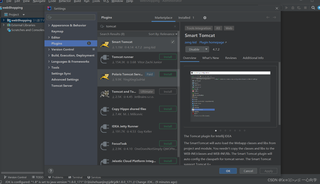

idea版本为2023.0.1社区版
在该版本插件上安装tomcat未果,尝试重装idea、JDK无用(在此之前曾成功安装过一次tomcat,但无法使用tomcat)
 分享
分享
 关注
关注引自免费微信小程序:皆我百晓生
在IntelliJ IDEA中,如果你想在运行Tomcat时自动加载Web应用类和依赖库,可以按照以下步骤进行配置:
步骤1:WebAppModule配置
Open the pom.xml file located in the lib folder of your project. Locate the <build> element and add the following configuration:
<build>
    ...
    <plugins>
        <plugin>
            <groupId>org.apache.tomcat.maven</groupId>
            <artifactId>tomcat-maven-plugin</artifactId>
            <version>2.0.20</version>
            <configuration>
                ...
                <loadLibraries>true</loadLibraries>
                ...
                <!-- The WebAppModule is configured as a Maven dependency -->
                <dependency>
                    <groupId>com.example</groupId>
                    <artifactId>MyWebAppModule</artifactId>
                    <version>1.0-SNAPSHOT</version>
                </dependency>
            </configuration>
        </plugin>
    </plugins>
</build>
**步骤2:WebAppModule代码Inside thewebappModulesection, add the following code to load the specifiedWebAppModule` (replace "com.example.MyWebAppModule" with the actual artifact ID):
<dependencies>
    <dependency>
        <groupId>com.example</groupId>
        <artifactId>MyWebAppModule</artifactId>
        <version>1.0-SNAPSHOT</version>
        <scope>runtime</scope>
    </dependency>
</dependencies>
步骤3:调整Tomcat version
After installing the WebAppModule, you may want to update the Tomcat version to ensure it uses the new dependencies provided by the WebAppModule. Open the command prompt or terminal and navigate to the root directory of your project:
cd /path/to/your/project
Then, run the following commands to update the Tomcat version:
mvn clean install -Dmaven.test.skip=true
This command will install the latest stable version of Tomcat (usually v8.5.4 or later), and update all its dependencies. Make sure to replace "/path/to/your/project" with the actual path to your project.
Step 4: Restart IDE and Tomcat
After completing the above steps, restart IntelliJ IDEA and then open a new project. If you have manually added the WebAppModule dependency into your pom.xml, this should automatically be resolved now. You can verify that the WebAppModule is available at runtime by running a simple application.
If you still encounter issues during startup, try the following troubleshooting steps:
WebAppModule has been properly imported in the webapps directory of your Tomcat installation:ls -1 webapps/
Make sure the myWebAppModule.jar file exists in the webapps directory, and it has the correct relative path (/path/to/myWebAppModule.jar).
Verify the WebAppModule metadata in the project settings:
Open the application.properties file (or build.gradle file in a gradle-based project) and locate the webAppModule property. Update the corresponding value to match the absolute path of the WebAppModule in your pom.xml.
Use IntelliJ IDEA's built-in task or plugin to configure your Java build process:
Click on "Project" > "Build" > "Generate Tasks," then select "Find and Replace" and search for WebAppModule and replace it with com.example.MyWebAppModule.
Check the error message:
If you're encountering any errors related to classpath conflicts or missing dependencies, check the output of the mvn package command:
mvn package
It will provide detailed information about any errors encountered during the build. If there are any warning messages or issues related to the new WebAppModule being installed, look for those specific warnings or fix them.
Remember to test your application after making changes, especially when using external libraries. In case you've successfully resolved the issue, close IntelliJ IDEA and restart it for the changes to take effect.
By following these steps, you should be able to configure IntelliJ IDEA to automatically load the WebAppModule classes and dependencies during Tomcat startup, providing better integration with your Maven-based projects.
分享 创建了问题
3月31日
创建了问题
3月31日

