
html问题,
想做的功能就是把一个数据点击提交后,显示数据,默认显示表格数据,点击图形按钮后,可以显示echart图形,然后table隐藏,
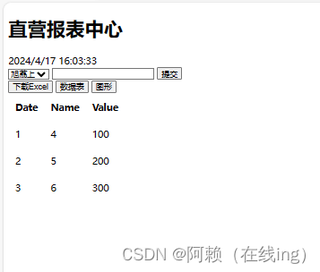
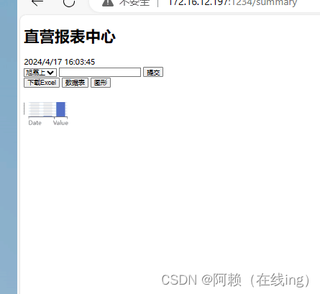
目前遇到的问题是功能正常,显示大小异常
点击提交后

点击数据表按钮后
点击图形按钮后
<!DOCTYPE html>
<html lang="en">
    <head>
        <meta charset="UTF-8">
        <title>直营报表中心</title>
        <script src="https://cdn.jsdelivr.net/npm/echarts/dist/echarts.min.js"></script>
        <script src="https://cdnjs.cloudflare.com/ajax/libs/xlsx/0.16.9/xlsx.full.min.js"></script>
        <link rel="stylesheet" href="https://code.jquery.com/ui/1.12.1/themes/base/jquery-ui.css">
        <script src="https://code.jquery.com/jquery-3.6.0.min.js"></script>
        <script src="https://code.jquery.com/ui/1.12.1/jquery-ui.js"></script>
        <!-- <link rel="stylesheet" href="../static/css/style-1080.css"> -->
        <link rel="icon" type="image/x-icon" href="../static/favicon.ico">
    </head>
    <style>
        .table-container {
            position: relative;
            width: 800px;
            height: 500px;
        }

        #data-table {
            position: absolute;
            top: 0;
            left: 0;
            width: 100%;
            height: 100%;
            font-size: 16px;
            line-height: 1.5;
        }


        #data-table th, #data-table td {
            padding: 10px;
        }
    </style>
    <body>
        <div class="header">
            <h1>直营报表中心</h1>
            <span id="realtime-clock"></span>
        </div>

        <div class="hot-sell-panel">
            <div>
                <select id="subsidiary">
                    <option value='旭荔上'>旭荔上 </option>
                    <option value='旭葳'>旭葳 </option>
                    <option value='旭媖'> 旭媖 </option>
                    <option value='旭兵'>旭兵 </option>
                    <option value='旭桨'>旭桨 </option>
                </select>
                <input type="text" id="date">
                <button onclick="submitData()">提交</button>
            </div>
            <div>
                <button onclick="downloadTableAsExcel('data-table', 'data-table.xlsx')">下载Excel</button>
                <button id="table-btn" class="toggle-btn">数据表</button>
                <button id="chart-btn" class="toggle-btn">图形</button>
            </div>
            <div class="table-container">
                <table id="data-table" style="" >
                </table>
                <div id="chart-container" style="width: 1600px;height: 1000px;display: none;"></div>

            </div>

        </div>

        <script>

            $(function() {
                $("#date").datepicker({
                    dateFormat: 'yy-mm-dd'
                });
                // 初始化实时时间
                updateClock();
            });

            // 更新实时时间
            function updateClock() {
                const clock = document.getElementById('realtime-clock');
                setInterval(() => {
                    const now = new Date();
                    clock.textContent = now.toLocaleString('zh-CN', {
                        hour12: false
                    });
                }, 1000);
            }

            // 提交数据并更新表格和图表
            function submitData() {
                var date = document.getElementById('date').value;
                var subsidiary = document.getElementById('subsidiary').value;

                $.ajax({
                    url: '/get_summary_data',
                    type: 'POST',
                    contentType: 'application/json',
                    data: JSON.stringify({
                        date,
                        subsidiary
                    }),
                    success: function(data) {
                        //生成表格
                        updateTable(data);
                        // 生成图表
                        generateECharts(data);
                    },
                    error: function(xhr, status, error) {
                        console.error('Error:', error);
                    }
                })
            }

            function updateTable(data) {
                const dataTable = document.getElementById('data-table');
                dataTable.innerHTML = ''; // 清空现有表格

                // 安全地创建和更新表格内容
                const thead = document.createElement('thead');
                const tbody = document.createElement('tbody');
                const columns = data['columns'];

                let theadHtml = '<tr>';
                columns.forEach(function(col) {
                    theadHtml += '<th>' + col + '</th>';
                });
                theadHtml += '</tr>';
                thead.innerHTML = theadHtml;

                data['data'].forEach(function(row) {
                    const tr = document.createElement('tr');

                    // 修正:遍历row数组,为每个cell创建td并添加到tr
                    row.forEach(function(cell) {
                        const td = document.createElement('td');
                        td.textContent = cell;
                        tr.appendChild(td);
                    });

                    tbody.appendChild(tr);
                });
                // 修正:检查querySelector返回的元素是否为null
                const existingThead = dataTable.querySelector('thead');
                if (existingThead) {
                    dataTable.replaceChild(thead, existingThead);
                } else {
                    dataTable.appendChild(thead);
                }

                const existingTbody = dataTable.querySelector('tbody');
                if (existingTbody) {
                    dataTable.replaceChild(tbody, existingTbody);
                } else {
                    dataTable.appendChild(tbody);
                }
            }

            function downloadTableAsExcel(tableId, filename = '') {
                // 获取表格
                var table = document.getElementById(tableId);
                var workbook = XLSX.utils.table_to_book(table, {
                    sheet: "Sheet1"
                });

                // 指定生成的文件类型
                var wbout = XLSX.write(workbook, {
                    bookType: 'xlsx',
                    bookSST: true,
                    type: 'binary'
                });

                function s2ab(s) {
                    var buf = new ArrayBuffer(s.length);
                    var view = new Uint8Array(buf);
                    for (var i = 0; i < s.length; i++) view[i] = s.charCodeAt(i) & 0xFF;
                    return buf;
                }

                // 创建Blob对象
                var blob = new Blob([s2ab(wbout)], {
                    type: 'application/octet-stream'
                });

                // 创建下载链接
                var url = URL.createObjectURL(blob);
                var a = document.createElement('a');
                a.href = url;
                a.download = filename || 'table.xlsx';
                document.body.appendChild(a);
                a.click();
                URL.revokeObjectURL(url);
                document.body.removeChild(a);
            }

            document.addEventListener('DOMContentLoaded', () => {
                const tableBtn = document.getElementById('table-btn');
                const chartBtn = document.getElementById('chart-btn');
                const dataTable = document.getElementById('data-table');
                const chartContainer = document.getElementById('chart-container');

                tableBtn.addEventListener('click', () => {
                    dataTable.style.display = 'block';
                    chartContainer.style.display = 'none';

                    // 更新.table-container的高度
                    const container = dataTable.parentNode;
                       container.style.height = '500px'; // 或者使用计算出的实际高度
                });

                chartBtn.addEventListener('click', () => {
                    dataTable.style.display = 'none';
                    chartContainer.style.display = 'block';

                    // 更新.table-container的高度
                    const container = chartContainer.parentNode;
                       container.style.height = '500px'; // 或者使用计算出的实际高度
                });
            });

            function generateECharts(data) {

                const chartContainer = document.getElementById('chart-container'); // 确保容器的ID正确
                const chart = echarts.init(chartContainer, null, {
                                        renderer: 'canvas',
                                        width: '100%',
                                        height: '100%',
                                        resize: () => {
                                            chart.resize();
                                        }
                                    });


                const chartData = convertToEChartsData(data); // 假设这是一个将原始数据转换为ECharts所需格式的函数

                // 创建ECharts实例
                // const chart = echarts.init(document.getElementById('chart-container'));

                // 配置图表选项
                const options = {
                    tooltip: {},
                    xAxis: {
                        type: 'category',
                        data: chartData.categories,
                    },
                    yAxis: {
                        type: 'value'
                    },
                    series: [{
                        data: chartData.values,
                        type: 'bar',
                        showBackground: true,
                        backgroundStyle: {
                            color: 'rgba(180, 180, 180, 0.2)'
                        }
                    }]
                };

                // 绘制图表
                chart.setOption(options);
            }

            function convertToEChartsData(data) {
                // 根据实际数据结构编写此函数,将原始数据转换为ECharts所需的格式
                // 示例返回一个对象,包含categories(x轴分类)和values(y轴值)
                return {
                    categories: data.columns, // 假设columns是x轴分类
                    values: data.data[0],     // 假设data的第一个元素是y轴值
                };
            }

        </script>
    </body>
</html>


