最近有个需求 和下面的图片效果差不多 请教一下各位 勇士 这种效果用什么控件 卡了两三天了 没有思路了
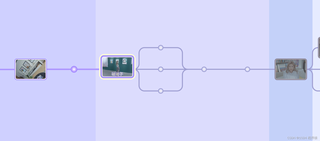
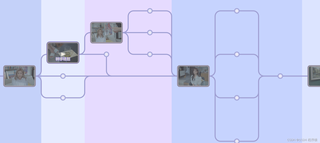

最近有个需求 和下面的图片效果差不多 请教一下各位 勇士 这种效果用什么控件 卡了两三天了 没有思路了
 分享
分享
 关注
关注让阿豪来帮你解答,本回答参考chatgpt3.5编写提供,如果还有疑问可以评论或留言问题描述: 如何实现类似于图片中的效果?需要使用哪些控件? 回答: 根据图片的效果,可以看出需要实现以下几个基础功能: 1.滑动切换不同的图片。 2.每张图片上方可以设置标题等文字信息,且该信息有一定的透明度。 3.当滑动切换到下一张图片时,当前图片上方的文字信息应该逐渐消失,下一张图片上方的文字信息逐渐出现。 基于以上需求,我会使用ViewPager和混合控件来实现该效果。 ViewPager是Android提供的用于实现页面滑动效果的控件,可以支持左右滑动切换页面的效果,非常适合实现图片的切换效果。 混合控件是Android提供的一种自定义控件的方式,可以将多个现有的控件组合起来,形成功能强大的新控件。可以通过混合控件实现图片上方的文字信息,而该信息透明度的效果可以通过调整混合控件里面不同控件的透明度来实现。 以下是代码实现: MainActivity.java:
public class MainActivity extends AppCompatActivity {
    private ViewPager viewPager;
    private List<View> views;
    @Override
    protected void onCreate(Bundle savedInstanceState) {
        super.onCreate(savedInstanceState);
        setContentView(R.layout.activity_main);
        //初始化ViewPager
        viewPager = (ViewPager) findViewById(R.id.viewPager);
        LayoutInflater inflater = getLayoutInflater();
        View view1 = inflater.inflate(R.layout.pager_item, null);
        ImageView imageView1 = (ImageView) view1.findViewById(R.id.imageView);
        imageView1.setImageResource(R.drawable.pager1);
        HybridView hybridView1 = (HybridView) view1.findViewById(R.id.hybridView);
        hybridView1.setText("图片1");
        View view2 = inflater.inflate(R.layout.pager_item, null);
        ImageView imageView2 = (ImageView) view2.findViewById(R.id.imageView);
        imageView2.setImageResource(R.drawable.pager2);
        HybridView hybridView2 = (HybridView) view2.findViewById(R.id.hybridView);
        hybridView2.setText("图片2");
        View view3 = inflater.inflate(R.layout.pager_item, null);
        ImageView imageView3 = (ImageView) view3.findViewById(R.id.imageView);
        imageView3.setImageResource(R.drawable.pager3);
        HybridView hybridView3 = (HybridView) view3.findViewById(R.id.hybridView);
        hybridView3.setText("图片3");
        views = new ArrayList<View>();
        views.add(view1);
        views.add(view2);
        views.add(view3);
        viewPager.setAdapter(new PagerAdapter() {
            @Override
            public int getCount() {
                return views.size();
            }
            @Override
            public boolean isViewFromObject(View view, Object object) {
                return view == object;
            }
            @Override
            public Object instantiateItem(ViewGroup container, int position) {
                container.addView(views.get(position));
                return views.get(position);
            }
            @Override
            public void destroyItem(ViewGroup container, int position, Object object) {
                container.removeView(views.get(position));
            }
        });
        //实现文字透明度渐变效果
        viewPager.addOnPageChangeListener(new ViewPager.OnPageChangeListener() {
            @Override
            public void onPageSelected(int position) {
                HybridView hybridView1 = (HybridView) views.get(position).findViewById(R.id.hybridView);
                HybridView hybridView2 = (HybridView) views.get((position + 1) % views.size()).findViewById(R.id.hybridView);
                hybridView1.startAnimation(getAlphaAnimation(1.0f, 0.0f, 500));
                hybridView2.startAnimation(getAlphaAnimation(0.0f, 1.0f, 500));
            }
            @Override
            public void onPageScrolled(int arg0, float arg1, int arg2) {
            }
            @Override
            public void onPageScrollStateChanged(int arg0) {
            }
        });
    }
    /**
     * 创建透明度动画
     *
     * @param fromAlpha
     * @param toAlpha
     * @param durationMillis
     * @return
     */
    private AlphaAnimation getAlphaAnimation(float fromAlpha, float toAlpha, long durationMillis) {
        AlphaAnimation alphaAnimation = new AlphaAnimation(fromAlpha, toAlpha);
        alphaAnimation.setDuration(durationMillis);
        return alphaAnimation;
    }
}
activity_main.xml:
<LinearLayout xmlns:android="http://schemas.android.com/apk/res/android"
    android:layout_width="match_parent"
    android:layout_height="match_parent"
    android:orientation="vertical">
    <android.support.v4.view.ViewPager
        android:id="@+id/viewPager"
        android:layout_width="match_parent"
        android:layout_height="match_parent" />
</LinearLayout>
pager_item.xml:
<RelativeLayout xmlns:android="http://schemas.android.com/apk/res/android"
    android:layout_width="match_parent"
    android:layout_height="match_parent">
    <ImageView
        android:id="@+id/imageView"
        android:layout_width="match_parent"
        android:layout_height="match_parent" />
    <com.example.HybridView
        android:id="@+id/hybridView"
        android:layout_width="match_parent"
        android:layout_height="wrap_content"
        android:layout_alignParentTop="true"
        android:background="#99000000"
        android:padding="10dp"
        android:textColor="#ffffff"
        android:textSize="20sp" />
</RelativeLayout>
HybridView.java:
public class HybridView extends LinearLayout {
    private TextView textView;
    public HybridView(Context context) {
        super(context);
        init(context);
    }
    public HybridView(Context context, AttributeSet attrs) {
        super(context, attrs);
        init(context);
    }
    private void init(Context context) {
        setOrientation(LinearLayout.VERTICAL);
        LayoutInflater inflater = LayoutInflater.from(context);
        View view = inflater.inflate(R.layout.hybrid_view, null);
        textView = (TextView) view.findViewById(R.id.textView);
        addView(view);
    }
    /**
     * 设置TextView的文字
     *
     * @param text
     */
    public void setText(String text) {
        textView.setText(text);
    }
    /**
     * 设置TextView的透明度
     *
     * @param alpha
     */
    public void setAlpha(float alpha) {
        textView.setAlpha(alpha);
    }
}
hybrid_view.xml:
<LinearLayout xmlns:android="http://schemas.android.com/apk/res/android"
    android:layout_width="match_parent"
    android:layout_height="wrap_content"
    android:gravity="center_vertical"
    android:padding="10dp"
    android:orientation="horizontal">
    <TextView
        android:id="@+id/textView"
        android:layout_width="wrap_content"
        android:layout_height="wrap_content"
        android:textColor="#ffffff"
        android:textSize="20sp" />
</LinearLayout>
 创建了问题
5月6日
创建了问题
5月6日


