这是一个用于控制和监控设备状态的界面,主要功能包括蓝牙连接设备控制电源、查看实时电力、电流、电压等参数。界面设计简洁,用户可以通过按钮快速切换不同的控制模式或查看设备详情。
1.界面整体布局
界面设计简单且直观(如图所示),UI颜色(如图所示)分为几个主要部分:
1.1设备名称和状态显示
顶部显示设备名称,如“我的充电桩123”。
中间的圆形区域显示当前设备状态,“待机中”文字提示设备正在待机(如图所示)。关闭状态下圆形区域绿色改为灰色,"待机中"文字改为"关闭".
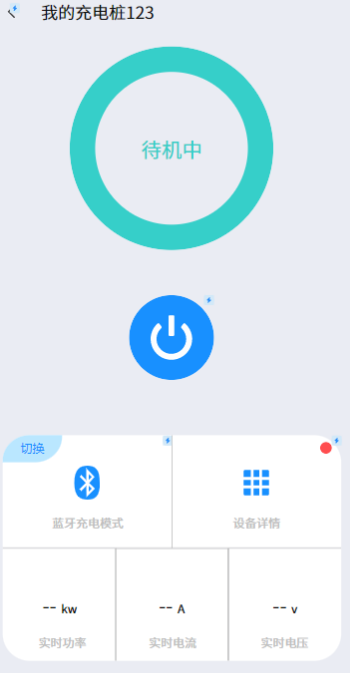

这是一个用于控制和监控设备状态的界面,主要功能包括蓝牙连接设备控制电源、查看实时电力、电流、电压等参数。界面设计简洁,用户可以通过按钮快速切换不同的控制模式或查看设备详情。
1.界面整体布局
界面设计简单且直观(如图所示),UI颜色(如图所示)分为几个主要部分:
1.1设备名称和状态显示
顶部显示设备名称,如“我的充电桩123”。
中间的圆形区域显示当前设备状态,“待机中”文字提示设备正在待机(如图所示)。关闭状态下圆形区域绿色改为灰色,"待机中"文字改为"关闭".
 分享
分享
 关注
关注让【道友老李】来帮你解答,本回答参考gpt编写,并整理提供,如果还有疑问可以点击头像关注私信或评论。
如果答案让您满意,请采纳、关注,非常感谢!界面整体布局可以参考如下代码,使用HTML、CSS和JavaScript实现:
<!DOCTYPE html>
<html lang="en">
<head>
<meta charset="UTF-8">
<meta name="viewport" content="width=device-width, initial-scale=1.0">
<title>设备控制界面</title>
<style>
    body {
        font-family: Arial, sans-serif;
        background-color: #f2f2f2;
    }
    .container {
        max-width: 600px;
        margin: 50px auto;
        padding: 20px;
        background-color: #fff;
        border-radius: 10px;
        box-shadow: 0 0 10px rgba(0, 0, 0, 0.1);
        text-align: center;
    }
    #deviceName {
        font-size: 20px;
        font-weight: bold;
        margin-bottom: 20px;
    }
    #statusDisplay {
        width: 200px;
        height: 200px;
        border-radius: 50%;
        background-color: #4CAF50;
        color: #fff;
        font-size: 20px;
        line-height: 200px;
        margin: 0 auto 20px;
    }
    #controlButton {
        padding: 10px 20px;
        background-color: #1E90FF;
        color: #fff;
        border: none;
        border-radius: 5px;
        cursor: pointer;
    }
</style>
</head>
<body>
<div class="container">
    <div id="deviceName">我的充电桩123</div>
    <div id="statusDisplay">待机中</div>
    <button id="controlButton" onclick="controlDevice()">控制设备</button>
</div>
<script>
    let deviceStatus = true;
    function controlDevice() {
        deviceStatus = !deviceStatus;
        let statusDisplay = document.getElementById("statusDisplay");
        let controlButton = document.getElementById("controlButton");
        if (deviceStatus) {
            statusDisplay.style.backgroundColor = "#4CAF50";
            statusDisplay.innerText = "待机中";
            controlButton.innerText = "关闭设备";
        } else {
            statusDisplay.style.backgroundColor = "#808080";
            statusDisplay.innerText = "关闭";
            controlButton.innerText = "启动设备";
        }
    }
</script>
</body>
</html>
这段代码实现了一个简单的设备控制界面,包括设备名称、状态显示和控制按钮。用户点击控制按钮可以切换设备的状态显示。您可以根据实际需求进行调整和修改。
分享 创建了问题
4月2日
创建了问题
4月2日

