
#有没有编译成功VSCODE的啊?
#编译过程中各种坑,有的话可以提供下node_modules吗?谢谢。

有没有编译成功VSCODE的啊?

- 写回答
- 好问题 0 提建议
- 关注问题
 分享
分享- 邀请回答
-

5条回答 默认 最新

 关注
关注让【宝码香车】来帮你解答,本回答参考DeepSeek编写,并整理提供。
如果还有疑问可以点击头像关注私信或评论。如果答案让您满意,请采纳、点赞、关注,非常感谢!
VS Code 编译指南
编译 VS Code 确实可能遇到各种问题,但通过正确配置可以成功完成编译。以下是完整解决方案:
编译步骤详解
1. 环境准备(必须严格匹配版本)
# 安装 Node.js(推荐使用 nvm 管理版本)
nvm install 16.17.0
nvm use 16.17.0


# 安装 Python
sudo apt install python3 python3-pip  # Linux
brew install python@3.10             # macOS


# 安装构建工具
sudo apt install build-essential      # Linux
xcode-select --install                # macOS
2. 获取源码
git clone https://github.com/microsoft/vscode.git
cd vscode
git checkout release/1.82  # 选择稳定分支
3. 解决依赖问题(关键步骤)
# 设置国内镜像(解决网络问题)
npm config set registry https://registry.npmmirror.com
npm config set disturl https://npmmirror.com/dist
npm config set electron_mirror https://npmmirror.com/mirrors/electron/


# 安装依赖(耐心等待)
npm install --ignore-scripts
4. 开始编译
# 首次编译(耗时较长)
npm run gulp vscode-linux-x64-min  # Linux
npm run gulp vscode-darwin-x64-min # macOS
npm run gulp vscode-win32-x64-min  # Windows


# 二次编译(增量编译)
npm run watch
常见问题解决方案
1. node_modules 问题
不建议直接共享 node_modules,因为:
- 依赖与操作系统/架构绑定
- 路径硬编码问题
- 版本冲突风险
替代方案:
# 使用缓存加速安装
npm install --prefer-offline --cache .npm_cache


# 使用 yarn 代替 npm
npm install -g yarn
yarn config set registry https://registry.npmmirror.com
yarn
2. 编译失败常见错误
ERR! OMG There are visual errors解决方案:
npm run gulp vscode-linux-x64 # 去掉 -min 参数Error: Cannot find module '...'解决方案:
npm rebuild # 重建原生模块编译流程可视化
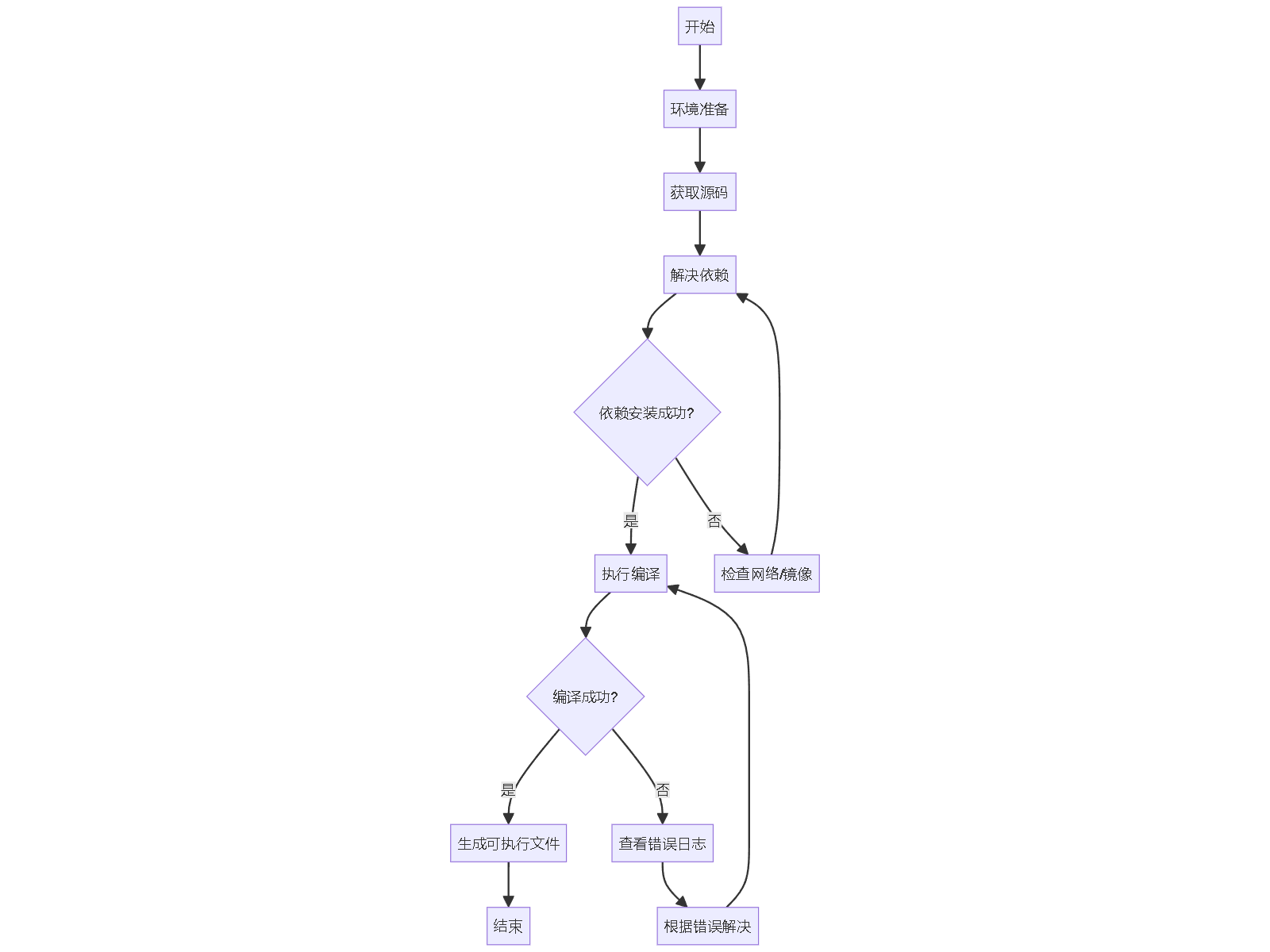
验证编译结果
# 运行编译后的 VS Code
./scripts/code.sh  # Linux/macOS
.\scripts\code.bat # Windows
高级技巧
- 减少编译时间:
# 仅编译核心模块 npm run gulp vscode-min- 调试编译过程:
# 查看详细日志 npm run gulp -- --verbose vscode-linux-x64-min- 构建安装包:
npm run gulp vscode-linux-x64-build-deb # .deb 包
npm run gulp vscode-win32-x64-archive  # Windows zip
编译 VS Code 需要耐心,特别是首次编译可能需要 30 分钟到 2 小时(取决于硬件)。遇到问题时,建议查看 官方编译文档 和 问题讨论区。
本回答被题主选为最佳回答 , 对您是否有帮助呢?解决 无用评论 打赏举报 分享
- 2025-09-25 13:55内容概要:本文详细介绍了嵌入式开发中交叉编译环境的搭建流程,主要包括下载并配置gcc-arm-none-eabi交叉编译工具链、make工具、MinGW环境,以及Ctags、Gtags和Python相关支持包的安装与环境变量设置。文中还列举了...
- 2023-06-27 16:52VS IDE 是微软的重量级IDE ⼯具,⾥⾯集成了各种开发环境的编译⼯具,特别是开发后端服务器编程,提供 了完整的C/C++ 、Java、Python、Go 、Android等集成开发⼯具。类似于Eclipse IDE,只需要⼀键安装即可。
- 2025-02-02 08:52VSCode远程开发工具是专为满足现代软件开发需求而设计的强大功能,特别适用于需要在不同操作系统间进行代码开发的场景。在传统的开发流程中,开发者通常在Windows或Mac操作系统上使用集成开发环境(IDE)编写代码,...
- 2025-09-18 00:13troyteng的博客 VSCode报错但CMake编译成功,本质上是一个IDE配置与项目实际构建配置不一致的问题。在VSCode中进行C++ CMake项目开发时,始终让CMake Tools插件主导你的C/C++扩展配置。通过正确选择Kit并把IntelliSense配置源指向...
- 2022-04-22 10:45在本文中,我们将深入探讨如何使用Visual Studio Code (VSCode) 配置Verilog开发环境,以便进行编译、运行及观察波形。VSCode是一款轻量级且功能强大的源代码编辑器,支持多种编程语言,包括硬件描述语言(HDL)如...
- 2025-10-17 10:16人工智能(AI)在软件开发工具中的应用日益增长,插件可以集成AI技术来进一步提升开发效率。例如,通过AI分析源代码,提供智能的代码重构建议,或者基于机器学习预测代码可能出现的错误,并给出修正建议。 此插件的...
- 2025-06-10 12:40这些工具是编译VSCode源码所必需的,它们各自承担着不同的职责,共同构成了开发环境的基石。理解每个工具的角色和如何使用它们,对于任何希望深入VSCode源码的开发者来说都是至关重要的。无论是对于初学者还是经验...
- 2025-06-16 21:13适合人群:适用于初学者及有一定编程经验但刚接触VSCode+C/C++开发环境的技术人员。 使用场景及目标:①希望快速搭建起基于VSCode的C/C++开发环境;②掌握如何配置编译器、创建编译任务以及调试程序的方法;③了解多...
- 2018-05-17 02:23很好的开发工具,界面布局很好,编译也很快,推荐给大家
- 2021-12-16 11:28而IAR For Visual Studio Code插件则允许VSCode与IAR编译工具链交互,自动生成配置文件,并调用IAR编译器。 2. **配置工程** - 当你首次打开IAR工程时,IAR For Visual Studio Code插件会扫描工程配置并生成`.c_...
- 没有解决我的问题, 去提问


问题事件
 系统已结题
6月12日
系统已结题
6月12日 已采纳回答
6月4日
已采纳回答
6月4日-
创建了问题
6月1日