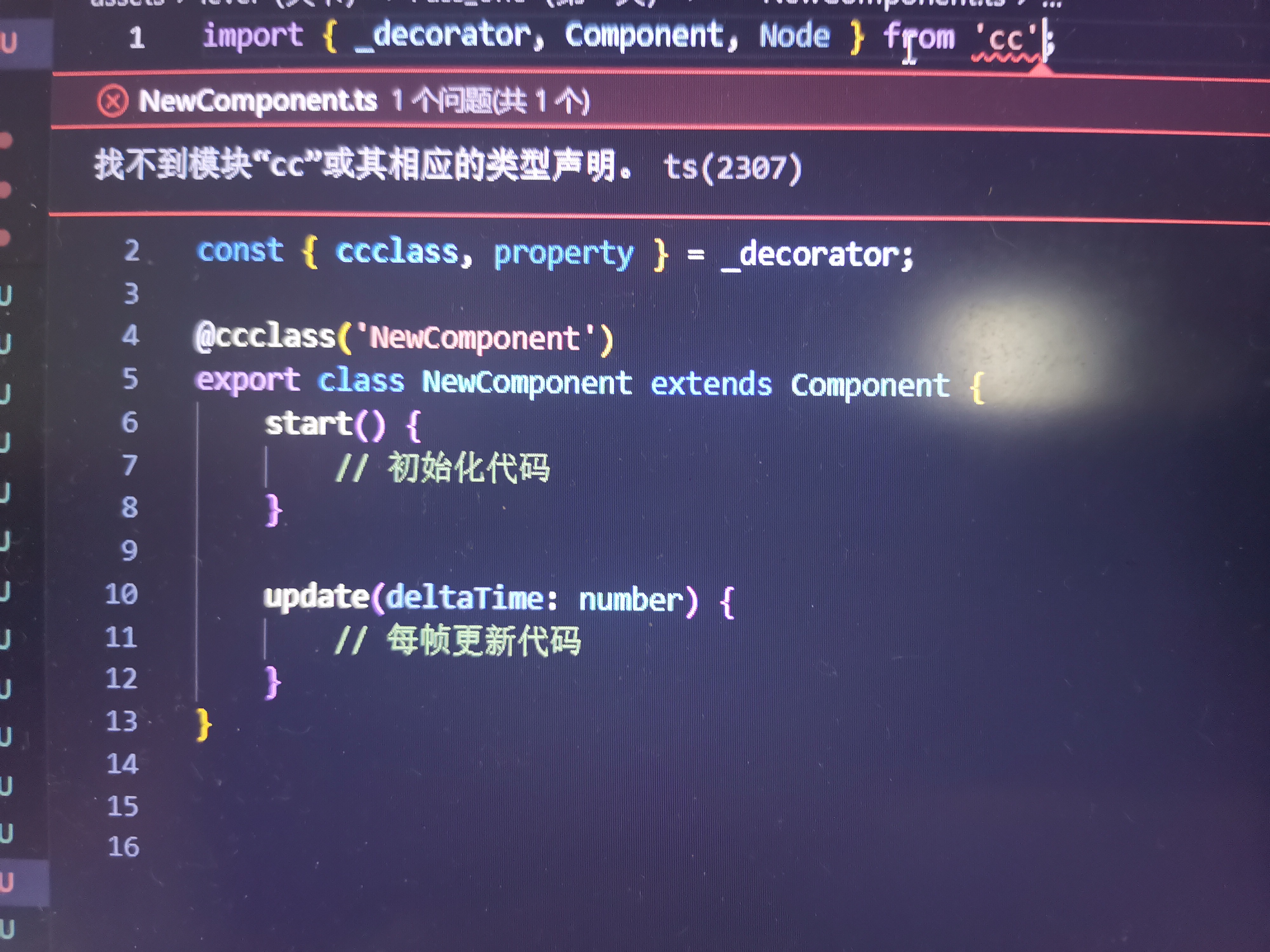
这是怎么回事cocos导入进那个vs中就cc模块一直有红色的下划线,删除了软件和vs进行了重置还是没有解决。

 分享
分享
上午好☀️☀️☀️️
本答案参考通义千问
你提到的“cc模块声明怎么解决?”以及在 Cocos Creator 项目中导入到 Visual Studio(VS)时,cc 模块一直有红色下划线,这通常是因为 VS 的 TypeScript 类型定义文件未正确加载或配置,导致 VS 无法识别 cc 模块。
cc 模块是 Cocos Creator 提供的全局变量,不是普通的 npm 包。.d.ts 文件),VS 会报错,显示 cc 模块不存在。tsconfig.json 配置在项目根目录下找到 tsconfig.json 文件,确保它包含以下内容:
{
  "compilerOptions": {
    "target": "ES6",
    "module": "ESNext",
    "strict": true,
    "moduleResolution": "node",
    "esModuleInterop": true,
    "skipLibCheck": true,
    "outDir": "./build",
    "rootDir": "./assets"
  },
  "include": ["assets/**/*.ts"]
}
注意: 如果没有
tsconfig.json,请创建一个,并确保rootDir和outDir正确指向你的代码目录。
cc 模块的类型定义(.d.ts)Cocos Creator 提供了 .d.ts 文件来支持 TypeScript 的类型提示。你需要将这些文件加入项目中。
你可以从 Cocos Creator GitHub 下载 types 文件夹,将其复制到你的项目根目录中。
如果你不知道从哪里获取,可以手动创建一个 global.d.ts 文件,内容如下:
// global.d.ts
declare module 'cc' {
  // 这里可以补充部分常用模块的类型定义
  // 例如:
  export const director: any;
  export const sceneManager: any;
  export const game: any;
  // 更多模块可参考官方文档
}
注意: 这只是一个基础模板,建议还是使用官方提供的类型定义。
tsconfig.json{
"compilerOptions": {
"target": "ES6",
"module": "ESNext",
"strict": true,
"moduleResolution": "node",
"esModuleInterop": true,
"skipLibCheck": true,
"outDir": "./build",
"rootDir": "./assets",
"types": ["cc"] // 添加这一行以明确指定 cc 模块类型
},
"include": ["assets/**/*.ts"]
}
重点说明:
types: ["cc"] 是关键,告诉 VS 有哪些全局模块需要被识别。
在你的脚本中尝试使用 cc 模块:
import { _decorator, Component, Node } from 'cc';

@_decorator.ccclass('MyComponent')
export class MyComponent extends Component {
  start() {
    console.log('Hello, Cocos!');
  }
}
如果 VS 不再报错,说明配置成功!
| 步骤 | 内容 |
|------|------|
| 1 | 确认项目类型为 Cocos Creator 项目 |
| 2 | 检查 tsconfig.json 配置 |
| 3 | 添加 cc 模块的类型定义文件 |
| 4 | 设置 VS 使用正确的 TypeScript 版本 |
| 5 | 重新加载项目或重启 VS |
| 6 | 确保 TypeScript 插件已启用 |
如果你仍然遇到问题,欢迎提供以下信息,我可以进一步帮助你排查:
tsconfig.json 内容希望以上内容能帮你解决问题!如果还有疑问,随时告诉我!
分享 创建了问题
8月18日
创建了问题
8月18日


