C#开发桌面程序通过接口对接后台程序,根据返回结果成功返回pass,失败返回fail,为了让操作用户更直观,需要做出如图示效果
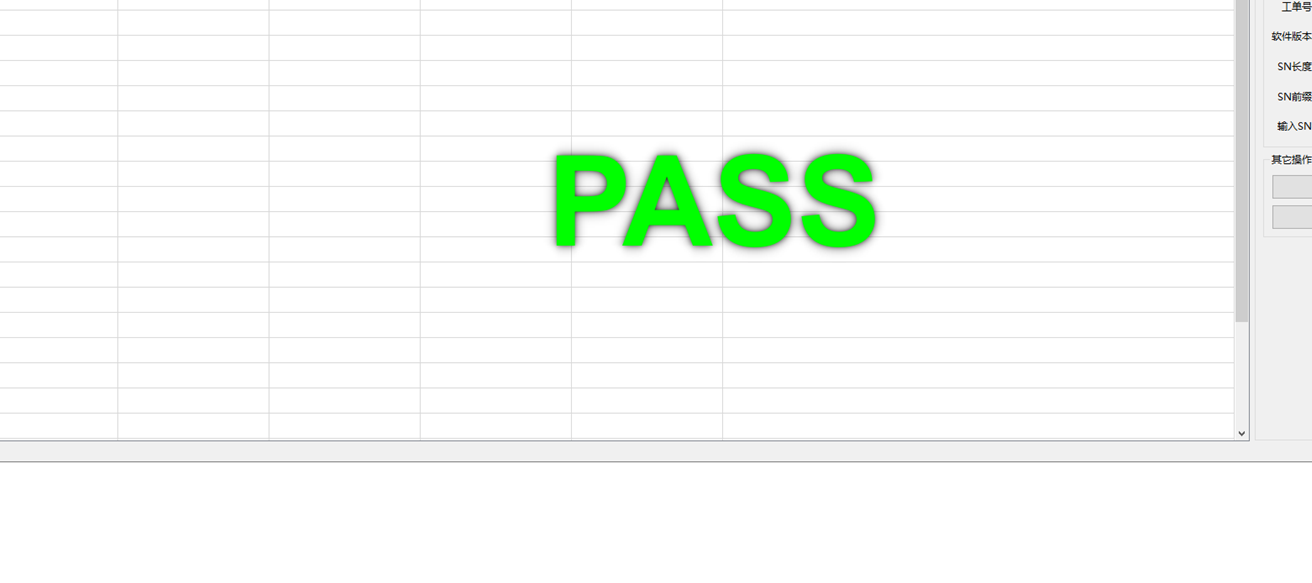

C#开发桌面程序通过接口对接后台程序,根据返回结果成功返回pass,失败返回fail,为了让操作用户更直观,需要做出如图示效果
 分享
分享
 关注
关注让 “紫雾凌寒” 来帮你回答,本回答结合 DeepSeek
如果还有问题,请评论或点击头像私信,如果有帮助到您, 请关注、采纳、点赞
result模拟)。MessageBox来简单提示:if (result == "pass")
{
MessageBox.Show("操作成功", "提示", MessageBoxButtons.OK, MessageBoxIcon.Information);
}
else if (result == "fail")
{
MessageBox.Show("操作失败", "提示", MessageBoxButtons.OK, MessageBoxIcon.Error);
}
using System;
using System.Drawing;
using System.Windows.Forms;

public partial class CustomMessageBox : Form
{
    private string message;
    private string caption;
    private MessageBoxIcon icon;

    public CustomMessageBox(string message, string caption, MessageBoxIcon icon)
    {
        InitializeComponent();
        this.message = message;
        this.caption = caption;
        this.icon = icon;
        this.labelMessage.Text = message;
        this.Text = caption;
        switch (icon)
        {
            case MessageBoxIcon.Information: this.pictureBoxIcon.Image = Properties.Resources.info_icon; break;
            case MessageBoxIcon.Error: this.pictureBoxIcon.Image = Properties.Resources.error_icon; break;
        }
    }

    private void buttonOK_Click(object sender, EventArgs e)
    {
        this.Close();
    }
}
然后在主程序中调用:
if (result == "pass")
{
    CustomMessageBox customBox = new CustomMessageBox("操作成功", "提示", MessageBoxIcon.Information);
    customBox.ShowDialog();
}
else if (result == "fail")
{
    CustomMessageBox customBox = new CustomMessageBox("操作失败", "提示", MessageBoxIcon.Error);
    customBox.ShowDialog();
}
这里假设已经准备好info_icon和error_icon的图片资源并放在项目的Resources文件夹下。
3. 不同方案优缺点:
- 使用MessageBox:
- 优点:简单易用,代码量少,能快速给出提示。
- 缺点:样式较为固定,不够个性化,不能完全满足复杂的界面需求。
- 自定义提示窗口:
- 优点:可以根据需求定制界面样式,更加灵活和美观。
- 缺点:代码量相对较多,需要额外设计和实现自定义窗口的界面和逻辑。
4. 总结:
- 可以根据具体的需求和项目特点选择合适的方式来根据接口返回结果进行提示。如果只是简单的提示需求,MessageBox是一个不错的选择;如果需要更个性化的提示界面,则可以考虑自定义窗口的方式。
希望以上解答对您有所帮助。如果您有任何疑问,欢迎在评论区提出。
分享 创建了问题
9月17日
创建了问题
9月17日

