
#主要问题现象:TabLayout在加载fragment时,数据被复用,fragment一直被重复使用,重新加载控件也不行。麻烦解答,谢谢
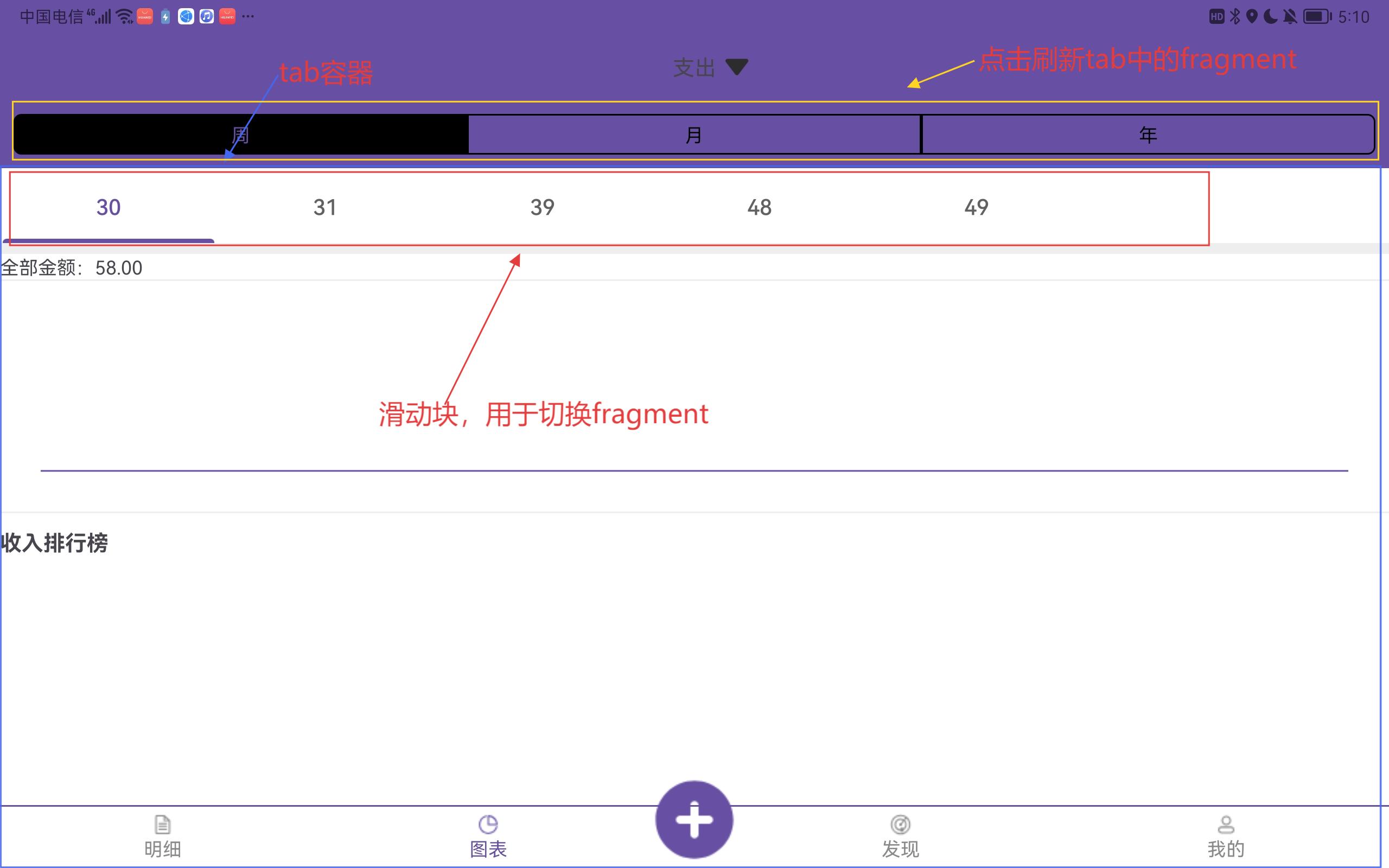
调用代码:
        // 准备TabLayoutView所需的数据
        val fragmentList: MutableList<Fragment> = mutableListOf()
        // 为每个分类数据创建对应的Fragment
        this.mData.forEach {
            fragmentList.add(ChartItemFragment().setMData(it.value).setSelectedType(this.selectedType))
        }

        val stringList: MutableList<String> = mutableListOf()
        // 为每个分类创建对应的标签文本
        this.mData.forEach {
            stringList.add(it.key.toString())
        }

        // 创建空的drawable列表(暂时未使用)
        val drawableList: MutableList<Drawable> = mutableListOf()

        // 设置TabLayoutView的必要数据并初始化
        this.tlvTabLayoutView?.setNecessaryData(
            childFragmentManager,
            stringList,
            fragmentList,
            drawableList,
            object : OnTabLayoutViewListener {
                override fun onTitleNameLongClick(int: Int) {
                    // 标题长按事件处理(未实现)
                }

                override fun onTitleNameSelectChange(int: Int) {
                    // 标题选择变化事件处理(未实现)
                }
            })
        this.tlvTabLayoutView?.init()
自定义TabLayoutView代码:
package com.example.luilibrary.view.tabsview

import android.content.Context
import android.content.res.ColorStateList
import android.graphics.Color
import android.graphics.Typeface
import android.graphics.drawable.Drawable
import android.util.AttributeSet
import android.view.Gravity
import android.view.View
import android.view.View.OnLongClickListener
import android.widget.ImageView
import android.widget.LinearLayout
import android.widget.TextView
import androidx.fragment.app.Fragment
import androidx.fragment.app.FragmentManager
import com.example.luilibrary.R
import com.example.luilibrary.adapter.BTTabFragmentAdapter
import com.example.luilibrary.listeener.OnTabLayoutViewListener
import com.example.luilibrary.utils.AppUtil
import com.example.luilibrary.utils.DensityUtil
import com.example.luilibrary.utils.ResourceUtil
import com.google.android.material.tabs.TabLayout
import com.google.android.material.tabs.TabLayout.TabLayoutOnPageChangeListener

/**
 * @类名: TabLayoutView
 * &
 * @编码人: Administrator
 * &
 * @日期: 2025/11/13
 * &
 * @描述: 选项卡布局视图
 **/
class TabLayoutView : LinearLayout {

    // 根布局视图,用于包含TabLayout和ViewPager
    private var rootView: View? = null

    // TabLayout组件,用于显示选项卡标题
    private var tabLayout: TabLayout? = null

    // NoSwipeViewPager组件,用于显示Fragment内容,禁止手势滑动切换
    private var nvp: NoSwipeViewPager? = null

    // 标题图标方向枚举类,定义图标相对于文字的位置
    sealed class TitleIconOrientation(val value: Int) {
        // 图标在文字左侧
        data object Left : TitleIconOrientation(1)

        // 图标在文字上方
        data object Top : TitleIconOrientation(2)

        // 图标在文字右侧
        data object Right : TitleIconOrientation(3)

        // 图标在文字下方
        data object Bottom : TitleIconOrientation(4)
    }

    // 标题对齐方式枚举类,定义Tab标题的对齐方式
    sealed class TitleGravity(val value: Int) {
        // 居中对齐
        data object Center : TitleGravity(2)

        // 填充对齐
        data object Fill : TitleGravity(3)
    }

    // BTTabFragmentAdapter适配器,用于管理Fragment和Tab的对应关系
    private var btTabFragmentAdapter: BTTabFragmentAdapter? = null

    // Tab标题列表,存储每个Tab的标题文字
    private var tabList: MutableList<String> = mutableListOf()

    // Fragment列表,存储每个Tab对应的Fragment
    private var fragmentList: MutableList<Fragment> = mutableListOf()

    // Drawable列表,存储每个Tab对应的图标
    private var drawableList: MutableList<Drawable> = mutableListOf()

    // Fragment管理器,用于管理Fragment的生命周期
    private var fragmentManager: FragmentManager? = null

    // TabLayoutView监听器,用于处理Tab的交互事件
    private var onTabLayoutViewListener: OnTabLayoutViewListener? = null

    // 标题对齐类型,默认为居中对齐
    private var titleGravityType: TitleGravity = TitleGravity.Center

    // 标题图标方向类型,默认为图标在左侧
    private var titleIconOrientationType: TitleIconOrientation = TitleIconOrientation.Left

    // TabLayout内边距,存储[left, top, right, bottom]四个方向的内边距值
    private var tabLayoutPadding: IntArray? = null

    // 标题背景颜色,默认为白色
    private var titleBackgroundColor: Int = Color.WHITE

    // 标题指示器高度(像素),默认为0
    private var titleIndicatorHeightPx: Int = 0

    // 标题指示器颜色,默认为白色
    private var titleIndicatorColor: Int = Color.WHITE

    // 标题指示器Drawable,用于自定义指示器样式
    private var titleIndicatorDrawable: Drawable? = null

    // 图标与文字之间的距离(像素),默认为0
    private var iconTextDistancePx: Int = 0

    // 标题图标大小(像素),默认为24dp转换后的像素值
    private var titleIconSizePx: Int = DensityUtil.dp2px(24f)

    // 标题文字是否加粗,默认为false
    private var titleTextBold: Boolean = false

    // 标题文字内边距,存储[left, top, right, bottom]四个方向的内边距值
    private var titleTextPadding: IntArray? = null


    // TODO: 2025/11/14 14:15 -(Administrator)-{🎉  生命周期}

    // 构造函数:仅传入Context参数
    constructor(context: Context) : super(context)

    // 构造函数:传入Context和AttributeSet参数,用于支持XML布局属性
    constructor(context: Context, attrs: AttributeSet) : super(context, attrs)


    // TODO: 2025/11/13 17:34 -(Administrator)-{🎉  内部调用}

    /**
     * 初始化变量
     * 加载布局文件并获取TabLayout和NoSwipeViewPager的引用
     * 创建BTTabFragmentAdapter适配器实例
     * 设置标题指示器颜色为应用主题色
     */
    private fun initVariable() {
        // 从布局文件inflate并设置为当前视图
        this.rootView = LinearLayout.inflate(context, R.layout.lui_tab_layout, this)
        // 查找TabLayout组件
        this.tabLayout = this.rootView?.findViewById(R.id.lui_tab_layout_tile)
        // 查找NoSwipeViewPager组件
        this.nvp = this.rootView?.findViewById(R.id.lui_tab_layout_nvp)
        // 创建BTTabFragmentAdapter适配器
        this.btTabFragmentAdapter =
            fragmentManager?.let { BTTabFragmentAdapter(it, fragmentList, tabList) }
        // 设置标题指示器颜色为主题色
        this.titleIndicatorColor =
            AppUtil.getThemeColor(context, androidx.appcompat.R.attr.colorPrimary)
    }

    /**
     * 初始化视图
     * 设置ViewPager适配器,关联TabLayout与ViewPager
     * 初始化Tab设置并添加页面切换监听器
     * 如果有图标则创建自定义Tab视图
     */
    private fun initView() {
        // 设置ViewPager的适配器
        this.nvp?.adapter = btTabFragmentAdapter
        // 关联TabLayout与ViewPager
        this.tabLayout?.setupWithViewPager(this.nvp)
        // 设置Tab模式为固定模式
        this.tabLayout?.tabMode = TabLayout.MODE_SCROLLABLE
        // 初始化Tab相关设置
        initTabSetting()
        // 添加页面切换监听器
        this.nvp?.addOnPageChangeListener(TabLayoutOnPageChangeListener(this.tabLayout))

        // 如果有图标资源则创建自定义Tab视图
        if (this.drawableList.isNotEmpty()) {
            val tabCount = this.tabLayout?.tabCount
            for (i in 0 until tabCount!!) {
                val tabAt = this.tabLayout?.getTabAt(i)
                // 默认选中第一个Tab
                if (i == 0) {
                    tabAt?.select()
                }

                // 创建自定义Tab视图
                val createTabView = createTabView(i)
                // 设置长按监听器
                createTabView.setOnLongClickListener(OnLongClickListener {
                    if (this.onTabLayoutViewListener != null) {
                        this.onTabLayoutViewListener!!.onTitleNameLongClick(i)
                    }
                    true
                })
                // 将自定义视图设置给Tab
                tabAt?.setCustomView(createTabView)
            }
        }
    }

    /**
     * 初始化监听器
     * 设置Tab选中状态变化的监听器
     */
    private fun initListener() {
        // 设置Tab选中监听器
        this.tabLayout?.setOnTabSelectedListener(object : TabLayout.OnTabSelectedListener {
            // Tab被选中时的回调
            override fun onTabSelected(p0: TabLayout.Tab?) {
                if (this@TabLayoutView.onTabLayoutViewListener != null && p0 != null) {
                    this@TabLayoutView.onTabLayoutViewListener!!.onTitleNameSelectChange(p0.position)
                }
            }

            // Tab取消选中时的回调(空实现)
            override fun onTabUnselected(p0: TabLayout.Tab?) {

            }

            // Tab重新选中时的回调(空实现)
            override fun onTabReselected(p0: TabLayout.Tab?) {

            }
        })
    }

    /**
     * 初始化Tab设置
     * 根据配置设置Tab的对齐方式、内边距、背景色、指示器等属性
     */
    private fun initTabSetting() {
        // 设置标题对齐方式
        if (this.titleGravityType == TabLayoutView.TitleGravity.Center) {
            this.tabLayout?.tabGravity = TabLayout.GRAVITY_CENTER
        } else if (this.titleGravityType == TabLayoutView.TitleGravity.Fill) {
            this.tabLayout?.tabGravity = TabLayout.GRAVITY_FILL
        }
        // 设置TabLayout内边距
        if (this.tabLayoutPadding != null && this.tabLayoutPadding!!.size == 4) {
            this.tabLayout?.setPadding(
                this.tabLayoutPadding!![0],
                this.tabLayoutPadding!![1],
                this.tabLayoutPadding!![2],
                this.tabLayoutPadding!![3]
            )
        }
        // 设置标题背景颜色
        if (this.titleBackgroundColor != -1) {
            this.tabLayout?.setBackgroundColor(this.titleBackgroundColor)
        }
        // 设置标题指示器高度
        if (this.titleIndicatorHeightPx > 0) {
            this.tabLayout?.setSelectedTabIndicatorHeight(this.titleIndicatorHeightPx)
        }
        // 设置指示器是否占满整个Tab宽度
        this.tabLayout?.isTabIndicatorFullWidth = true
        // 设置标题指示器颜色
        if (this.titleIndicatorColor != -1) {
            this.tabLayout?.setSelectedTabIndicatorColor(this.titleIndicatorColor)
        }
        // 设置标题指示器Drawable
        if (this.titleIndicatorDrawable != null) {
            this.tabLayout?.setSelectedTabIndicator(this.titleIndicatorDrawable)
        }
    }

    /**
     * 创建Tab视图
     * 根据是否有图标和图标方向创建相应的Tab布局
     * @param position Tab位置
     * @return 创建的Tab视图
     */
    private fun createTabView(position: Int): View {
        // 创建容器LinearLayout
        val llContainer = LinearLayout(this.context)
        // 设置容器内边距
        if (this.tabLayoutPadding != null && this.tabLayoutPadding!!.size == 4) {
            llContainer.setPadding(
                this.tabLayoutPadding!![0],
                this.tabLayoutPadding!![1],
                this.tabLayoutPadding!![2],
                this.tabLayoutPadding!![3]
            )
        }
        // 如果没有图标资源
        if (this.drawableList.size == 0) { //若不存在图标
            llContainer.orientation = HORIZONTAL
            val textView = createTextView(position)
            llContainer.addView(textView)
        } else {
            // 根据图标方向创建不同布局
            if (this.titleIconOrientationType == TitleIconOrientation.Left) {
                llContainer.orientation = HORIZONTAL
                val textView = createTextView(position)
                val textParams = textView.layoutParams as LayoutParams
                textParams.leftMargin = this.iconTextDistancePx
                textView.layoutParams = textParams
                val imageView = createImageView(position)
                llContainer.addView(imageView)
                llContainer.addView(textView)
            } else if (this.titleIconOrientationType == TitleIconOrientation.Right) {
                llContainer.orientation = HORIZONTAL
                val textView = createTextView(position)
                val textParams = textView.layoutParams as LayoutParams
                textParams.rightMargin = this.iconTextDistancePx
                textView.layoutParams = textParams
                val imageView = createImageView(position)
                llContainer.addView(textView)
                llContainer.addView(imageView)
            } else if (this.titleIconOrientationType == TitleIconOrientation.Top) {
                llContainer.orientation = VERTICAL
                val textView = createTextView(position)
                val textParams = textView.layoutParams as LayoutParams
                textParams.topMargin = this.iconTextDistancePx
                textView.layoutParams = textParams
                val imageView = createImageView(position)
                llContainer.addView(imageView)
                llContainer.addView(textView)
            } else {
                llContainer.orientation = VERTICAL
                val textView = createTextView(position)
                val textParams = textView.layoutParams as LayoutParams
                textParams.bottomMargin = this.iconTextDistancePx
                textView.layoutParams = textParams
                val imageView = createImageView(position)
                llContainer.addView(textView)
                llContainer.addView(imageView)
            }
        }
        // 设置容器居中对齐
        llContainer.gravity = Gravity.CENTER
        return llContainer
    }

    /**
     * 创建ImageView
     * 创建并配置Tab中的图标视图
     * @param position 图标位置
     * @return 配置好的ImageView
     */
    private fun createImageView(position: Int): ImageView {
        val imageView = ImageView(this.context)
        // 设置图标资源
        imageView.setImageDrawable(this.drawableList[position])
        // 设置缩放类型
        imageView.scaleType = ImageView.ScaleType.CENTER
        // 设置布局参数
        val params: LayoutParams =
            LayoutParams(this.titleIconSizePx, this.titleIconSizePx)
        imageView.layoutParams = params
        return imageView
    }

    /**
     * 创建TextView
     * 创建并配置Tab中的文字视图
     * @param position 文字位置
     * @return 配置好的TextView
     */
    private fun createTextView(position: Int): TextView {
        val textView = TextView(this.context)
        // 设置显示文字
        textView.text = this.tabList[position]
        // 设置文字大小
        textView.textSize = 16f
        // 设置文字颜色状态列表(选中和未选中状态)
        val colorStateList = ColorStateList(
            arrayOf<IntArray>(
                intArrayOf(-android.R.attr.state_selected),
                intArrayOf(android.R.attr.state_selected)
            ),
            intArrayOf(
                ResourceUtil.getColor(R.color.md_grey_700),
                AppUtil.getThemeColor(this.context, androidx.appcompat.R.attr.colorPrimary)
            )
        )
        textView.setTextColor(colorStateList)
        // 设置文字居中对齐
        textView.gravity = Gravity.CENTER
        // 设置是否加粗
        if (this.titleTextBold) {
            textView.setTypeface(Typeface.defaultFromStyle(Typeface.BOLD))
        }
        // 设置文字内边距
        if (this.titleTextPadding != null && this.titleTextPadding!!.size == 4) {
            textView.setPadding(
                this.titleTextPadding!![0],
                this.titleTextPadding!![1],
                this.titleTextPadding!![2],
                this.titleTextPadding!![3]
            )
        }
        // 设置布局参数
        val params = LayoutParams(LayoutParams.WRAP_CONTENT, LayoutParams.WRAP_CONTENT)
        textView.layoutParams = params
        return textView
    }

    // TODO: 2025/11/14 11:31 -(Administrator)-{🎉  外部调用}

    /**
     * 初始化TabLayoutView组件
     * 依次初始化变量、视图和监听器
     */
    fun init() {
        initVariable()
        initView()
        initListener()
    }

    /**
     * 设置TabLayoutView必需的数据
     * @param fragmentManager Fragment管理器,用于管理Fragment生命周期
     * @param tabList 标签页标题列表
     * @param fragmentList Fragment列表,与标签页一一对应
     * @param drawableList 图标Drawable列表,与标签页一一对应
     * @param onTabLayoutViewListener 标签页布局监听器,用于处理标签页交互事件
     */
    fun setNecessaryData(
        fragmentManager: FragmentManager,
        tabList: MutableList<String>,
        fragmentList: MutableList<Fragment>,
        drawableList: MutableList<Drawable>,
        onTabLayoutViewListener: OnTabLayoutViewListener
    ) {
        this.fragmentManager = fragmentManager
        this.tabList = tabList
        this.fragmentList = fragmentList
        this.drawableList = drawableList
        this.onTabLayoutViewListener = onTabLayoutViewListener
    }

    // TODO: 2025/11/14 9:01 -(Administrator)-{🎉  get/set调用}

    /**
     * 设置标题栏的对齐方式
     * @param titleGravityType 标题对齐类型 (Center:居中, Fill:填充)
     */
    fun setTitleGravityType(titleGravityType: TitleGravity) {
        this.titleGravityType = titleGravityType
    }

    /**
     * 设置标题图标的方向
     * @param titleIconOrientationType 图标方向类型 (Left:左, Top:上, Right:右, Bottom:下)
     */
    fun setTitleIconOrientationType(titleIconOrientationType: TitleIconOrientation) {
        this.titleIconOrientationType = titleIconOrientationType
    }

    /**
     * 设置TabLayout的内边距
     * @param tabLayoutPadding 内边距数组 [left, top, right, bottom]
     */
    fun setTabLayoutPadding(tabLayoutPadding: IntArray) {
        this.tabLayoutPadding = tabLayoutPadding
    }

    /**
     * 设置标题背景颜色
     * @param titleBackgroundColor 背景颜色值
     */
    fun setTitleBackgroundColor(titleBackgroundColor: Int) {
        this.titleBackgroundColor = titleBackgroundColor
    }

    /**
     * 设置标题指示器高度
     * @param titleIndicatorHeightPx 指示器高度(像素)
     */
    fun setTitleIndicatorHeightPx(titleIndicatorHeightPx: Int) {
        this.titleIndicatorHeightPx = titleIndicatorHeightPx
    }

    /**
     * 设置标题指示器颜色
     * @param titleIndicatorColor 指示器颜色值
     */
    fun setTitleIndicatorColor(titleIndicatorColor: Int) {
        this.titleIndicatorColor = titleIndicatorColor
    }

    /**
     * 设置标题指示器Drawable
     * @param titleIndicatorDrawable 指示器Drawable对象
     */
    fun setTitleIndicatorDrawable(titleIndicatorDrawable: Drawable) {
        this.titleIndicatorDrawable = titleIndicatorDrawable
    }

    /**
     * 设置图标与文字之间的距离
     * @param iconTextDistancePx 距离值(像素)
     */
    fun setIconTextDistancePx(iconTextDistancePx: Int) {
        this.iconTextDistancePx = iconTextDistancePx
    }

    /**
     * 设置标题图标大小
     * @param titleIconSizePx 图标大小(像素)
     */
    fun setTitleIconSizePx(titleIconSizePx: Int) {
        this.titleIconSizePx = titleIconSizePx
    }

    /**
     * 设置标题文字是否加粗
     * @param titleTextBold 是否加粗
     */
    fun setTitleTextBold(titleTextBold: Boolean) {
        this.titleTextBold = titleTextBold
    }

    /**
     * 设置标题文字内边距
     * @param titleTextPadding 文字内边距数组 [left, top, right, bottom]
     */
    fun setTitleTextPadding(titleTextPadding: IntArray) {
        this.titleTextPadding = titleTextPadding
    }
}
适配器代码:
package com.example.luilibrary.adapter

import androidx.fragment.app.Fragment
import androidx.fragment.app.FragmentManager

/**
 * @类名: BTTabFragmentAdapter
 * &
 * @编码人: Administrator
 * &
 * @日期: 2025/11/13
 * &
 * @描述: tab fragment适配器
 **/
class BTTabFragmentAdapter(
    fragmentManager: FragmentManager,//fragment管理器
    fragmentList: MutableList<Fragment>,//fragment列表
    tabList: MutableList<String>//tab列表
) : BTFragmentAdapter(fragmentManager, fragmentList) {

    // 存储标签页标题列表的成员变量
    private var tabList: MutableList<String> = mutableListOf()

    // 初始化块:检查传入的tabList是否为空,如果不为空则赋值给成员变量
    init {
        if (tabList.isNotEmpty()) {
            this.tabList = tabList
        }
    }

    // 重写getPageTitle方法,返回指定位置的标签页标题
    override fun getPageTitle(position: Int): CharSequence? {
        return this.tabList[position]
    }

    // TODO: 2025/11/13 18:06 -(Administrator)-{🎉 外部调用}

    // 提供外部获取标签页标题列表的方法
    fun getTabList(): MutableList<String> {
        return this.tabList
    }
}
package com.example.luilibrary.adapter

import androidx.fragment.app.Fragment
import androidx.fragment.app.FragmentManager
import androidx.fragment.app.FragmentPagerAdapter

/**
 * @类名: BTFragmentAdapter
 * &
 * @编码人: Administrator
 * &
 * @日期: 2025/11/13
 * &
 * @描述: Fragment适配器
 **/
open class BTFragmentAdapter(
    fragmentManager: FragmentManager,//Fragment管理器
    fragmentList: MutableList<Fragment>//Fragment列表
) : FragmentPagerAdapter(fragmentManager) {


    // 存储Fragment列表的成员变量,用于ViewPager的页面管理
    private var fragmentList: MutableList<Fragment> = mutableListOf()

    // 初始化块:检查传入的fragmentList是否为空,如果不为空则赋值给成员变量
    init {
        if (fragmentList.isNotEmpty()) {
            this.fragmentList = fragmentList
        }
    }

    // 重写FragmentPagerAdapter的方法,返回Fragment列表的大小
    override fun getCount(): Int {
        return this.fragmentList.size
    }

    // 重写FragmentPagerAdapter的方法,根据位置返回对应的Fragment
    override fun getItem(position: Int): Fragment {
        return this.fragmentList[position]
    }

    // TODO: 2025/11/13 18:04 -(Administrator)-{🎉  外部调用}

    // 提供外部获取Fragment列表的方法
    fun getFragmentList(): MutableList<Fragment> {
        return this.fragmentList
    }
}


