
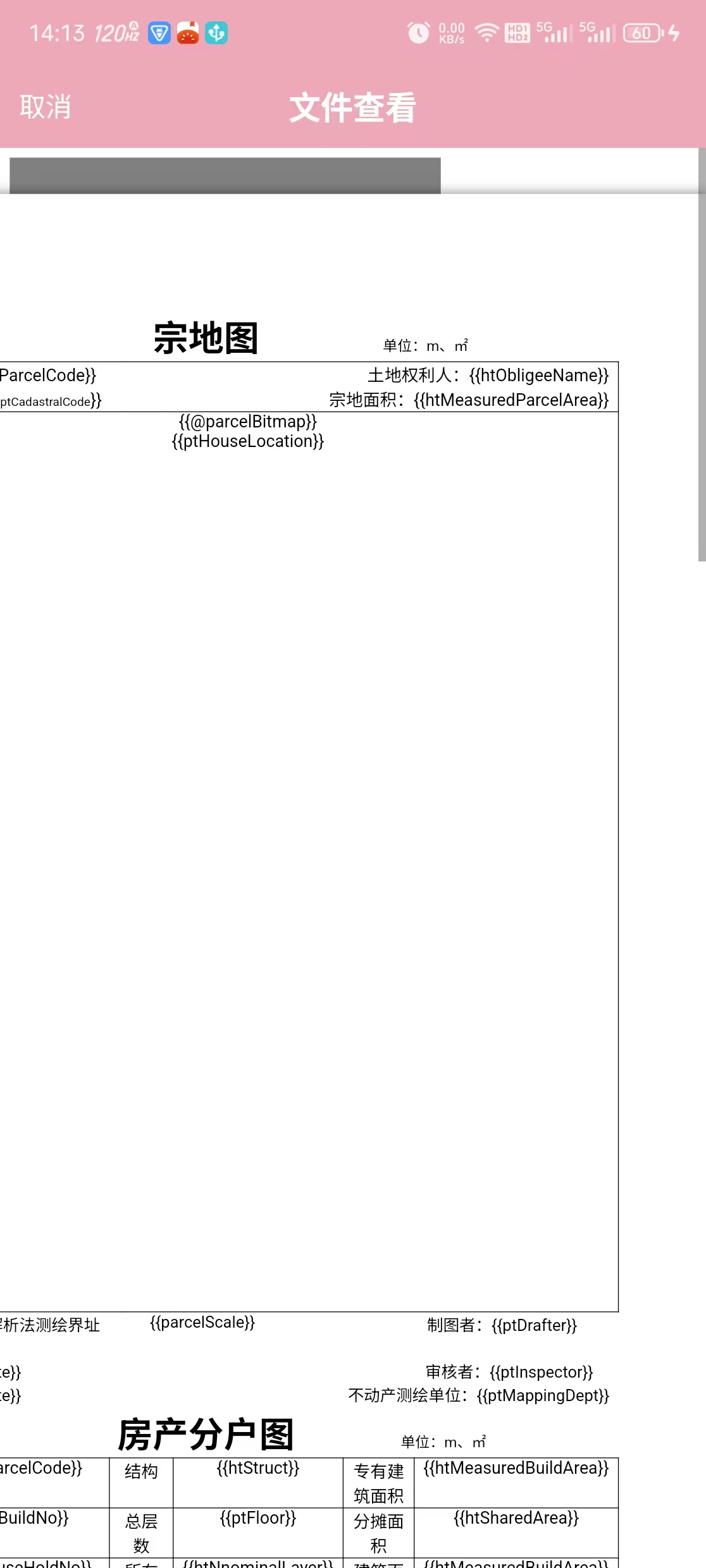
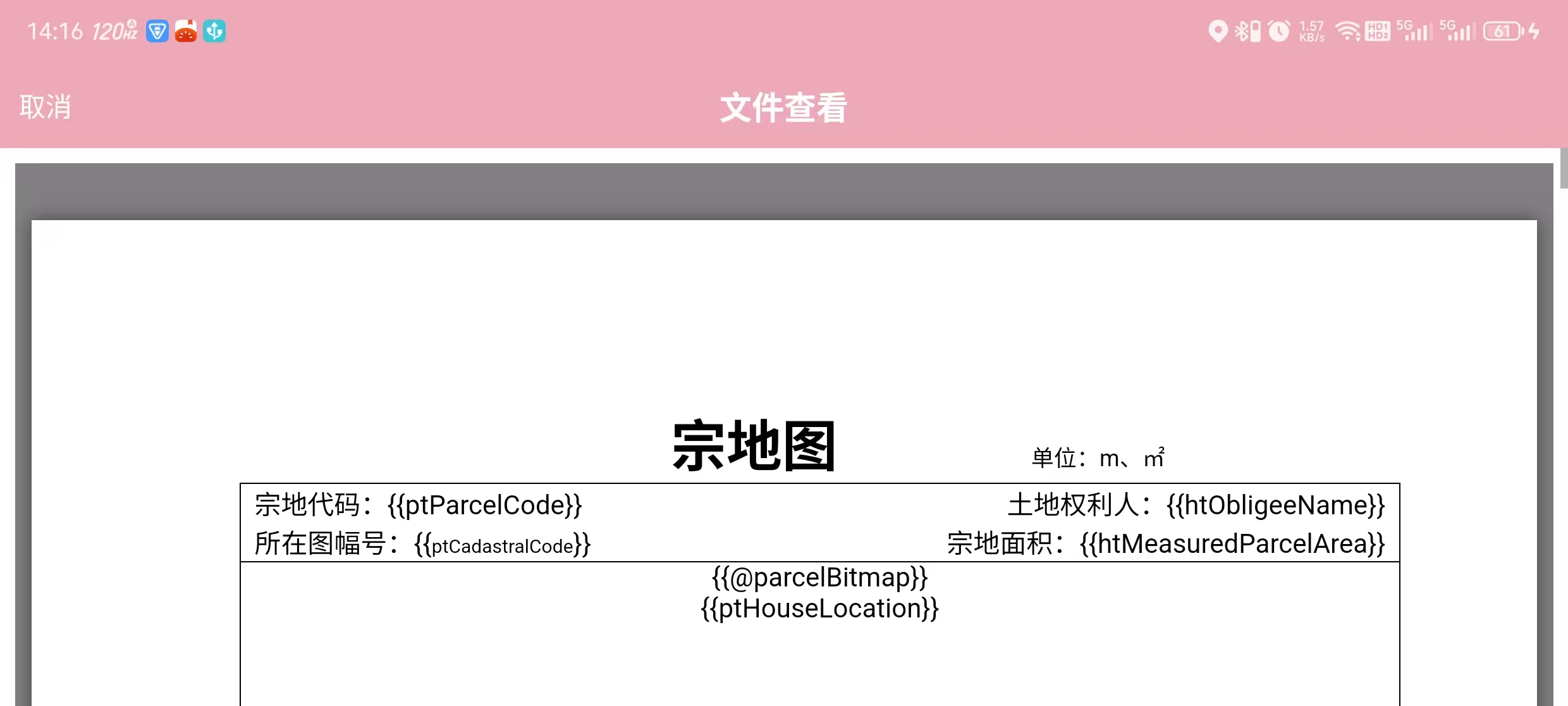
麻烦大家看下是不是哪里设置错误,竖屏状态下有问题
错误显示效果:(竖屏状态)
正确显示效果:(横屏状态)
代码:
package com.example.luilibrary.view

import android.graphics.Bitmap
import android.os.Build
import android.view.ViewGroup
import android.webkit.ConsoleMessage
import android.webkit.PermissionRequest
import android.webkit.ValueCallback
import android.webkit.WebChromeClient
import android.webkit.WebResourceError
import android.webkit.WebResourceRequest
import android.webkit.WebResourceResponse
import android.webkit.WebSettings
import android.webkit.WebView
import android.webkit.WebViewClient
import android.widget.FrameLayout
import androidx.activity.ComponentActivity
import androidx.fragment.app.Fragment
import androidx.lifecycle.Lifecycle
import androidx.lifecycle.LifecycleEventObserver
import androidx.lifecycle.LifecycleOwner
import com.example.luilibrary.LuiConstant
import com.example.luilibrary.utils.FileUtil

/**
 * @类名: WebFileView
 * &
 * @编码人: Administrator
 * &
 * @日期: 2026/2/4
 * &
 * @描述: web方式文件查看器
 **/
class WebFileView : LifecycleEventObserver {

    private var webView: WebView? = null
    private var filePath: String = ""
    private var VUE_URL_WORD: String = "file:///android_asset/dist/index.html#/word"


    // TODO: 2026/2/4 15:17 -(Administrator)-{🎉  生命周期}

    constructor(context: ComponentActivity) {
        this.webView = WebView(context)
        context.lifecycle.addObserver(this)
    }

    constructor(context: Fragment) {
        this.webView = context.activity?.let { WebView(it) }
        context.lifecycle.addObserver(this)
    }

    override fun onStateChanged(
        source: LifecycleOwner,
        event: Lifecycle.Event
    ) {
        when (event) {
            Lifecycle.Event.ON_RESUME -> if (this.webView != null) {
                this.webView!!.onResume()
            }

            Lifecycle.Event.ON_PAUSE -> if (this.webView != null) {
                this.webView!!.onPause()
                this.webView!!.clearCache(true)
            }

            Lifecycle.Event.ON_DESTROY -> if (this.webView != null) {
                this.webView!!.loadDataWithBaseURL(null, "", "text/html", "utf-8", null)
                this.webView!!.clearHistory()
                (this.webView!!.parent as ViewGroup).removeView(this.webView)
                this.webView!!.destroy()
                this.webView = null
            }

            else -> {}
        }
    }

    // TODO: 2026/2/4 15:18 -(Administrator)-{🎉  内部调用}

    private fun loadWordView() {
        val scp: String?
        if (FileUtil.isWordUrl(this.filePath)) {
            scp = "javascript:openWord(\'${this.filePath}\')"
        } else {
            var word_path = "file://${this.filePath}"
            if (word_path.contains("#")) {
                word_path = word_path.replace("#".toRegex(), "%23")
            }
            scp = "javascript:openWord(\'$word_path\')"
        }
        this.webView!!.evaluateJavascript(scp, ValueCallback { value: String? ->

        })
    }

    private fun apply() {
        WebView.setWebContentsDebuggingEnabled(true)
        val webSettings = this.webView!!.settings
        webSettings.apply {
            if (Build.VERSION.SDK_INT > Build.VERSION_CODES.LOLLIPOP) {
                mixedContentMode = WebSettings.MIXED_CONTENT_ALWAYS_ALLOW
            }
            allowFileAccess = true
            allowContentAccess = true
            allowFileAccessFromFileURLs = true
            allowUniversalAccessFromFileURLs = true
            javaScriptEnabled = true
            javaScriptCanOpenWindowsAutomatically = true
            cacheMode = WebSettings.LOAD_DEFAULT
            useWideViewPort = true
            loadWithOverviewMode = true
            layoutAlgorithm = WebSettings.LayoutAlgorithm.NORMAL
            setSupportZoom(true)
            builtInZoomControls = true
            displayZoomControls = false
            defaultFontSize = 12
        }

        webView?.isHorizontalScrollBarEnabled = false
        webView?.scrollBarStyle = WebView.SCROLLBARS_OUTSIDE_OVERLAY
        webView?.isScrollbarFadingEnabled = false

        val extension = ".${FileUtil.getFile(filePath).extension}"
        if (LuiConstant.Companion.DocumentSuffix.isSuffixExist(extension)) {
            this.webView?.loadUrl(VUE_URL_WORD);
        }

        this.webView?.setWebChromeClient(object : WebChromeClient() {
            override fun onPermissionRequest(request: PermissionRequest) {
                if (Build.VERSION.SDK_INT >= Build.VERSION_CODES.LOLLIPOP) {
                    if (request.getOrigin().toString() == "file:///") {
                        request.grant(request.getResources())
                    } else {
                        request.deny()
                    }
                }
            }

            override fun onConsoleMessage(consoleMessage: ConsoleMessage): Boolean {
                return super.onConsoleMessage(consoleMessage)
            }
        })
        this.webView?.setWebViewClient(object : WebViewClient() {
            override fun shouldOverrideUrlLoading(view: WebView, url: String): Boolean {
                view.loadUrl(url)
                return true
            }

            override fun onPageStarted(view: WebView?, url: String?, favicon: Bitmap?) {
                super.onPageStarted(view, url, favicon)
            }

            override fun onReceivedError(
                view: WebView?,
                request: WebResourceRequest?,
                error: WebResourceError
            ) {
                super.onReceivedError(view, request, error)
            }

            override fun onReceivedHttpError(
                view: WebView?,
                request: WebResourceRequest?,
                errorResponse: WebResourceResponse
            ) {
                super.onReceivedHttpError(view, request, errorResponse)
            }

            override fun onPageFinished(view: WebView?, url: String?) {
                super.onPageFinished(view, url)
                if (FileUtil.isWordUrl(this@WebFileView.filePath) || LuiConstant.Companion.DocumentSuffix.isSuffixExist(
                        extension
                    )
                ) {
                    loadWordView()
                }
            }
        })
    }

    // TODO: 2026/2/4 15:38 -(Administrator)-{🎉  外部调用}

    fun setFilePath(filePath: String): WebFileView {
        this.filePath = filePath
        return this
    }

    fun attachTo(parent: FrameLayout) {
        apply()
        parent.addView(this.webView)
    }
}


